Volunteers, pastors, and operational handoffs
A church media weekly checklist, Sunday to Sunday
A church media checklist for the whole week, with a pre-service countdown you can edit, tick off on a tablet and print.
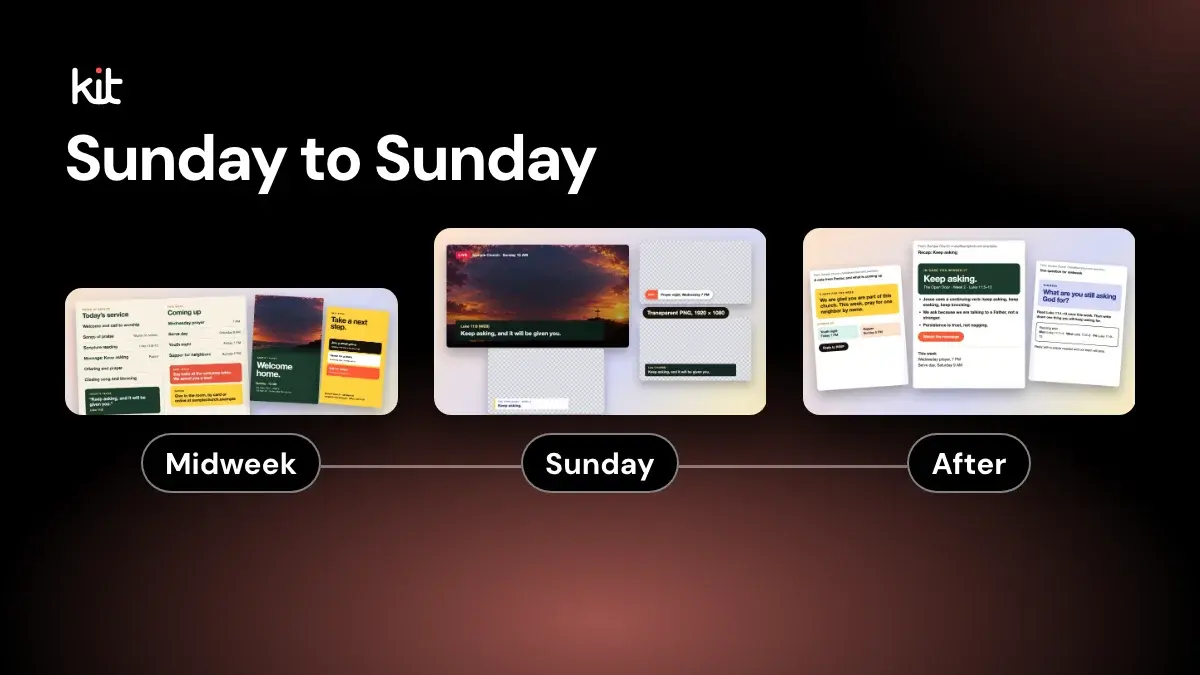
A church media team's week has four parts: midweek preparation, the countdown before the service, a short watch list during it, and saving everything afterward. Some checklists stop at Sunday morning. The StreamingChurch.tv volunteer checklist, for example, had no midweek tasks when we read it on 29 October 2026. This one covers all four, and the pre-service part is a tool you can open on a tablet in the booth, edit, tick off and print.
If you are the pastor, three things are yours to decide: the service start time, who the backup is for each job, and when the sermon title and quotes reach the team, for example by Tuesday. The rest of this page is for them.
Every time on this page is a sample. No standards body publishes how early a media team should arrive. Published checklists give different answers, so change any time to fit your room, your team and your building.
The week at a glance
| When | What you are doing | Where it is on this page |
|---|---|---|
| Monday to Saturday | Get the plan, build and check the slides, test the stream, charge batteries | Midweek |
| Before the service | Power, network, cameras, sound, a test recording, the stream | Booth Mode |
| During the service | Watch levels, the stream, the slides and the recording | During |
| After the service | Save and copy the recording, power down, tell the poster where the file is | After |
If one person does all of it, tell your pastor which part gives way when two jobs collide. The roles and director article explains how to split the jobs and what to tell your pastor.
Free printable PDF
Sunday setup and teardown checklist
What is inside
- A timeline that answers “what’s next?” Early week, 60, 30 and 10 minutes out.
- The setup order, with the real settings. YouTube and Facebook numbers, each traced to its source.
- The four backups that save a Sunday. Recording, slides, internet and batteries.
- A teardown and a handover. Who does what, plus what to fix next week.
Enter your email and confirm a code to download. We email you a copy the first time each day.
Midweek: before anyone is in the room
Sunday goes better when the work that can be done on Tuesday is done on Tuesday.
- Get the order of service, the songs and the readings from the worship leader. Ask for them early in the week, not on Saturday night.
- Build or check the slides, and play every video all the way through.
- Run software updates now, so a restart does not land on Sunday morning.
- Charge batteries and check the spares.
- Test the stream. YouTube's help pages say to test before you go live, with audio and movement in the test, and they let you make a stream private or unlisted (unlisted means only people with the link can find it). If you have never streamed on that channel, note that YouTube says enabling live streaming for the first time may take up to 24 hours, and that the channel needs to be verified and free of live-streaming restrictions. Do that long before the weekend.
- Confirm who is serving and who the backup is for each job.
- Send the sermon title, series, speaker and any quotes to whoever makes the week's graphics, early in the week, so their work can start.
Before the service: the countdown
This is the part that goes wrong when it lives in someone's head. Booth Mode below turns it into a countdown with tick-boxes. Set the start time of your service, and each item shows how many minutes before the start it is due and the clock time that works out to. Items turn to "due now" when their time passes, and the next one is marked. Every item names the job that owns it, using the six jobs from the roles article. You decide what you see. Choose any jobs, one or several, to see their items, or leave it on Everyone. Pin any item and it moves to a Do not miss block at the top, in countdown order, and pinned items always show, whatever jobs you choose. We start you with five pins, the sound check (30 minutes out), the starting slide and the stream encoder (15), the recording (10) and going live (0), because they are easy to skip when you are rushed. Unpin them, pin your own, or hide items you do not need. Hidden items are not deleted, and a count lets you show them again. Your choices stay in your own browser on that device. Change any time, add your own items and remove ones you do not need.
A few terms in the list, in plain words. The stream key is a secret code from the platform that connects your stream to your channel, and YouTube Help compares it to a password, so do not share it. The encoder is the software or device that sends your video to the platform. The audio meters are the bars that move with sound, and "in the red" means the loudest moments are too loud. The mixer is the sound desk, and program audio is what the audience hears, as opposed to what is in the room. More are in the church media glossary.
Booth Mode
A pre-service countdown checklist for the media booth. Choose your jobs, pin what matters, set your own times and print it.
Pick your service start to count down. 10:00 am is a sample.
10:00 am
Show these jobs
Choose one job or several. Everyone shows all of them. Pinned items always show.
Service starts at 10:00 am. Times are a sample: change them to fit your team.
Do not miss
Your pins, in countdown order. Pin or unpin any item.
Midweek
Monday to Saturday. Do these when the room is quiet.
Before the service
A countdown to the start. Every time is yours to change.
During the service
Glance at these a few times. Write down anything that goes wrong, with the time.
After the service
Save the recording before you reset or power anything down.
0 of 30 ticked. Showing 30 items. Your pins, jobs, hidden items, edits and ticks stay in this browser on this device. We do not receive or store them.
The sample checkpoints are 60, 45, 30, 20, 15, 10, 5 and 0 minutes before the start. They are one routine to start from. For arrival, three sources we read give three answers: MediaShout's 2026 Sunday checklist says at least 45 to 60 minutes before service, the StreamingChurch.tv volunteer checklist says one hour, and the livestreamer role at All Saints Ecclesall, a UK church, asks for about 30 minutes. The 15-minute mark comes from a different kind of source: YouTube Help advises starting a stream encoder, the software or device that sends your video to the platform, at least 15 minutes before an event.
The same page is also at church media checklist and pre-service countdown. Your pins, jobs, hidden items, edits and ticks stay in your own browser, on that device. We do not receive or store them. Ticks stay until you press Clear ticks, so clear them before next Sunday. After the page has loaded it keeps working if the connection drops, so open it before you head into a room with weak signal.
For the sourced settings behind the stream items, such as how much video data to send each second, see our free Sunday setup and teardown checklist and livestream preflight checklist.
During the service
You are not doing new work now. You are watching. Glance at each of these a few times, and write down anything that goes wrong with the time, so you can fix the cause that week.
- The meters show the program audio moving and not clipping (in the red).
- The stream is live and matches what is in the room.
- The next song or reading is ready on the slides.
- The recording is still running through the sermon.
- Framing follows the speaker. Batteries and memory card space are not low.
If you use lower thirds (the name bars), have them ready before they are needed. Our guide to lower thirds for a church livestream covers the on-screen side.
Captions are worth a decision before Sunday. The W3C's Web Content Accessibility Guidelines list captions for live audio at their middle level, AA (WCAG 2.2, success criterion 1.2.4). YouTube can generate automatic live captions, but its help page says they can misrepresent what was said, and it limits them by language, so name one person who checks them. See accessible church social graphics for the visual side.
If the stream fails, decide in advance who decides. The stream-fails recovery card is one place to start.
After the service
Save the recording before you reset or power down anything.
- Stop the stream and the recording. Check the Sunday recording plays and is not the test file.
- Copy the recording to a second place and name it with the date and sermon title. Delete the test recording. YouTube can archive a finished live stream automatically, but its help page also recommends keeping a local recording as a backup.
- Tell whoever posts during the week the file name, the length and where the recording is saved.
- Reset the slides to a blank screen, then power down in reverse order.
- Coil cables, put batteries on charge, and write down anything that broke.
A printable list
Print this page, or use the tool's own buttons: Print the list prints it as it is on screen, and Print blank boxes prints a clean sheet with empty boxes, the times and the jobs, for the booth wall or a clipboard. Here is the short version.
Midweek
- Order of service, songs and readings in hand
- Slides built, every video played through
- Updates done
- Batteries charged, spares checked
- Test stream run, with audio and movement
- Every job has a name and a backup
- Whoever makes the graphics has the sermon title, series, speaker and quotes
Before (change the times)
- 60 min: power on, network cable in, computers on, backup connection ready, slides and streaming account open, fresh mic batteries
- 45 min: upload speed test run, stream key entered and the platform lets you go live, cameras checked
- 30 min: sound check
- 20 min: short test recording played back on headphones
- 15 min: starting-soon slide up; stream encoder started and title and privacy setting checked, the platform says it is receiving and the audio meters move
- 10 min: recording on
- 5 min: phones silent, everyone at their station, service leader told
- 0 min: go live
During
- Meters, stream, next slide, recording running, framing and card space
After
- Recording checked and copied to a second place, test file deleted
- Poster told the file name, length and where it is saved
- Powered down, slides reset, batteries on charge, problems written down
Make it a weekly habit, not a heroic one
A checklist helps only if the team uses it, and a team uses it if it is short, current and theirs. Edit the list after each Sunday while you remember what went wrong. Rotate who runs it so no one carries the booth every week. The rotation and burnout check and the 52-week church media calendar help with the longer view. If your team has gone months without a break, the Church Media Check asks a few questions about where the time goes.
Where Church Media Kit fits
Church Media Kit does not run live slides, sound or a livestream. Those jobs need people and the equipment in your building. It helps after the recording is saved: it makes editable drafts of graphics, posts and clips from your sermon for a person to review and download.
Frequently asked questions
What should a church media team check before a service?
Power and network, batteries, cameras, the slides, a sound check, a short test recording and the stream. Work down them in order, with a time on each, so nothing is left to the last five minutes.
How early should the church media team arrive?
There is no standard. The three sources we read on 29 October 2026 say about 30 minutes, 45 to 60 minutes and one hour, so start with an hour if you have a stream to set up. If you only run slides and sound you may need less. Adjust to your room and your team.
What is needed to livestream a church service?
A camera and sound feed, a computer or device that sends the stream, a platform such as YouTube, a reliable internet connection and a person watching it. Test before you go live, and have a recording as a backup.
What do you do on a church media team during the service?
Watch the audio levels, the stream, the slides and the recording, and write down anything that goes wrong with the time. The setup work is already done.
Does Booth Mode need an account or an internet connection?
No account. After the page has loaded it keeps working if the connection drops, and it never sends your list, ticks or choices anywhere. Your choices stay in your own browser on that device, and we do not receive or store them.
Can I print the church media checklist?
Yes. The tool prints the list as it is on screen, or a blank-box sheet with the times and jobs for your own pen. The blank sheet follows the jobs you chose and your pins, and leaves out hidden items. You can also print the short list on this page.
Free printable PDF
Sunday setup and teardown checklist
The Sunday jobs your church media team does, in order: what to switch on, what to check, who owns it, and the backups to have ready.
Enter your email and confirm a code to download. We email you a copy the first time each day.
Try Church Media Kit
Review what’s included and try the tools that fit your church’s workflow.
A free account needs no card. Sermon to Social, Sermon Clips and Sermon Slides each give one free use. That is one sermon, one upload up to 2 hours, and one AI presentation. Church in bio is free for 14 days after you first publish it. Design and Verse of the Day are free with any account. Review the offer when choosing your plan.