Design, branding, and accessibility
What you can edit in the Church Media Kit Studio before publishing
A precise guide to the Studio's reviewed static-design controls, export behavior, and the checks that still belong to your church.
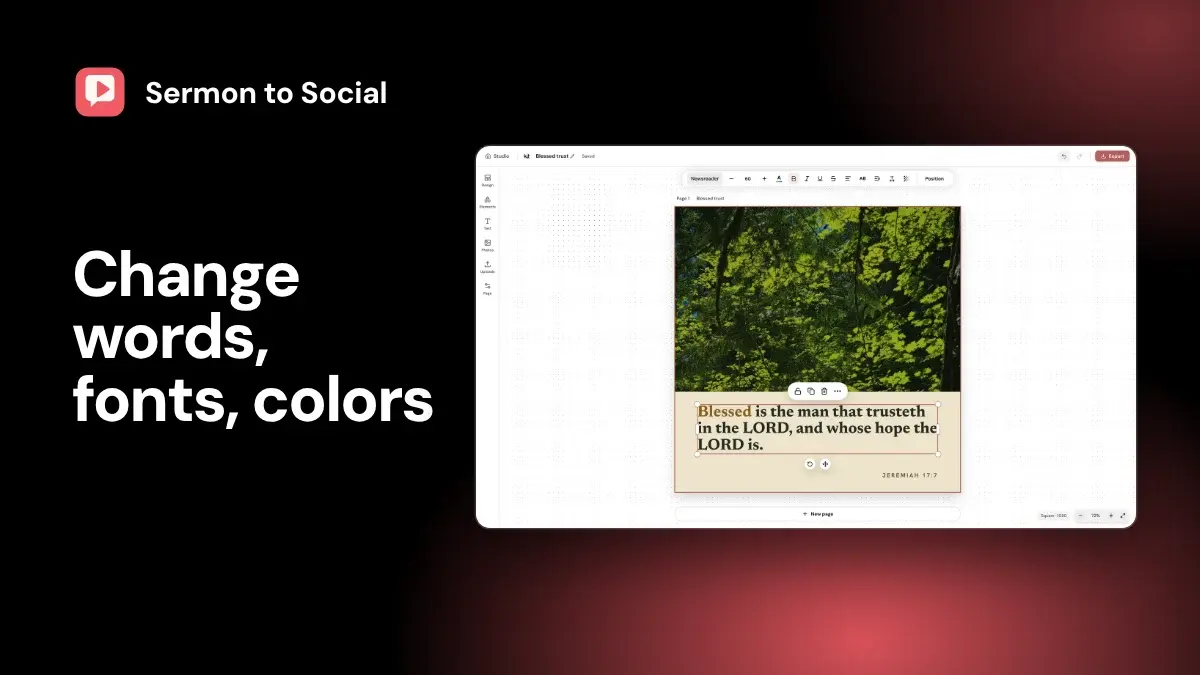
Church Media Kit Studio is the editor where a volunteer fixes a social graphic before posting it. Suppose a sermon graphic has the right idea, but the speaker name is still a placeholder, the quote is too long, and the photo crops the wrong person. Studio lets you change those things without rebuilding the page in another tool.
You can change text, images, backgrounds, layout, shapes, icons, frames, layers, and pages. You can undo and redo edits, open a read-only preview, and export finished pages as JPEG or PNG files. Several selected pages download as a ZIP of PNGs. This guide describes the editor as reviewed on 2026-08-29.
Here is what you get out: image files, nothing else. Studio does not write captions, attach alt text to the file, approve the message, clear image rights, check contrast, or post for you. Your team downloads the files and publishes them through your own Facebook and Instagram process.
Design is free with any account, and plans start at US$29.95 a month for the other apps; see pricing for what each includes and the Studio feature page for the editor itself.
The useful question is whether your team can make its weekly corrections without rebuilding the page elsewhere. The sections below show what the editor can and cannot do, so you can answer that for your church.
Studio capabilities at a glance
| Your editing job | Controls in the editor | What still needs a person |
|---|---|---|
| Correct the words | Edit text, font, size, style, alignment, spacing, color, and opacity | Compare the wording with the sermon and check names, dates, and references |
| Change an image | Add, replace, move, resize, rotate, crop in a frame, and adjust opacity or corner radius | Confirm rights, consent, purpose, and a suitable text description |
| Change the page background | Set a color or image, then replace or reposition the image | Check that text stays readable over the full background |
| Adjust the composition | Move, resize, rotate, align, group, lock, hide, duplicate, and reorder supported layers | Decide whether the hierarchy still makes sense at phone size |
| Organize several pages | Add, duplicate, delete, rename, tag, and reorder pages | Check the sequence and approve every page, not only the cover |
| Recover a recent edit | Undo and redo | Do not treat this as version-history restore |
| Inspect the set | Open a read-only page overview | Check the final exported files and the destination's actual preview |
| Export | Download a single-page JPEG, one selected PNG, or a ZIP of selected PNGs | Add the caption and alt text, secure approval, and publish through the church's process |
What text can you change?
You can replace the words in an existing text layer or add heading, subheading, body, and quote text. The inspector includes font family and size, bold, italic, underline, strikethrough, left, center, and right alignment, uppercase, bullet and numbered lists, letter spacing, line height, opacity, and text color.
Text layers can also be moved, resized, rotated, duplicated, locked, deleted, and placed in front of or behind other layers.
Those controls solve the mechanical part of a correction. They do not answer whether the correction is faithful.
"Generated" here means the draft sermon posts Church Media Kit makes from your sermon source. Editing the words in Studio is your change, and the team still checks it. If a generated sentence is presented as a quotation, compare it with the sermon source. If it is a paraphrase, remove quotation marks and make sure the shorter wording has not made the claim stronger. Confirm speaker names, scripture references, event dates, service times, locations, and calls to action against a current source.
Text fit also needs an eye. Replacing a short placeholder with a long name can create a cramped line or weak hierarchy even when the editor accepts the change. Open the page at a small viewing size and read it without zooming in.
What can you do with images and backgrounds?
Studio can add images from its configured photo search or from uploads. An image layer can be replaced, moved, resized, rotated, reordered, duplicated, locked, hidden, or deleted. The image inspector includes opacity, corner radius, and a field for draft alt text.
Frames give you another way to place an image. You can add or replace the image in a frame, reposition its crop, detach it as a separate image layer, or remove it. For a page background, you can choose a color or set an image as the background, then replace, reposition, detach, or delete that image.
None of these actions clears rights. Before using a sermon still, staff portrait, congregation photo, stock image, artwork, or logo, confirm that the church may reuse it in this context.
A public sermon video does not settle permission for every face or visual inside the recording. Pay particular attention to children, prayer moments, testimonies, and people in vulnerable situations.
Image purpose matters too. Ask what the photo adds. If removing it would change the post's meaning, write a concise description for people who cannot see it. The W3C image decision tree recommends writing alternatives from the image's function and context. Decorative images usually should not receive a narration of every detail.
Alt text is the short description that screen-reader users hear in place of an image. The Studio image field is for your draft only and does not attach it to a downloaded social image. The publisher still needs to add the final description in the destination's composer or approved publishing tool.
Facebook, for example, includes alternative text in its photo editing controls. Instagram also documents adding a description through its post settings in its official alt-text explainer.
How much of the layout can you adjust?
For ordinary static corrections, Studio has the expected canvas controls. You can move, resize, and rotate supported layers. You can align a selection to the page's left, center, right, top, middle, or bottom. Layer order can move an item forward, backward, to the front, or to the back.
The editor also supports copying, pasting, duplicating, grouping, ungrouping, locking, hiding, and deleting layers. Locking is useful after a background or logo reaches its approved position. It is a guard against an accidental drag, not a brand rule or permission system.
The Elements panel includes static shapes, icons, image frames, and decorative graphics. Depending on the selected element, the inspector can change color, opacity, strokes, corner treatment, and a few element-specific values. That is enough for common adjustments such as adding a color block behind a quote, changing an icon color, or tightening an image frame.
It is not evidence of vector illustration, advanced photo editing, smart layout, animation, audio, or video editing. If your weekly work depends on those jobs, use a tool built for them.
What can you change in a multi-page design?
You can select, add, duplicate, delete, rename, tag, and reorder pages. Available templates can be applied to a page. Each page keeps its own background and layers.
For a teaching carousel or another sequence, page editing creates a second review job. Read the pages in order. Check that the opening makes one clear promise, each page advances the same idea, and the final page does not introduce a new claim or call to action without context. A polished cover cannot rescue a disconnected sequence.
The Layers panel lists text, images, shapes, icons, frames, and groups for the active page. It lets you select an item, change its order, lock it, hide it, or delete it. This is practical when a decorative element is hard to select on the canvas or when several items overlap.
What do undo, redo, and preview mean here?
Undo and redo cover document edits, including page and layer changes. They help with recent corrections. They are not a promise of named versions, a long-term history, or restoration after every browser or account event.
The Preview button opens a read-only overview of the pages. Use it to scan order, titles, and the broad text layout. Do not treat it as the final proof. The destination may crop or scale the exported image differently, and the preview is not a pixel-identical rendering of every element.
Export the file, open it outside the editor, and view it near the size at which a person will encounter it. YouTube makes the same practical point in its thumbnail guidance: images appear differently across devices, text needs to remain readable, and an overcomplicated design can work against the message.
Exactly what does Export download?
The export path depends on the document and selection.
- If the document contains one page, the toolbar Export action downloads that page as a JPEG file.
- If the document contains several pages and you select one page in the export dialog, it downloads that page as a PNG file.
- If the document contains several pages and you select two or more, it downloads one ZIP containing one PNG file per selected page.
The multi-page dialog can select all pages, the current page, individual pages, or a page range. A selected page with a known unresolved required field can block the confirmation step.
The ZIP is a bundle of PNGs. You get image files only. Studio does not add a posting plan, captions, hashtags, alt-text file, or a folder for each post. It does not export PDF, SVG, PSD, video, animation, or an editable source document. Export also does not publish anything.
Before relying on these formats, ask to see them work in the live version you would use. Download a representative JPEG, a single PNG from a multi-page design, and a ZIP with several PNGs. Open every file. Check the type, dimensions, crop, fonts, image loading, filenames, and page order.
What should your church review before publishing?
An editor can expose a correction. It cannot own the decision. Name a reviewer for each post and have that person check the following.
- Compare quotations and paraphrases with the sermon in context.
- Confirm names, scripture references, dates, times, locations, links, and calls to action.
- Clear the rights, consent, privacy, and safeguarding questions for every image and story.
- Check text contrast (how clearly text stands out from what is behind it) against every part of its background. WCAG 2.2 sets a 4.5:1 minimum for ordinary text and 3:1 for large text, with defined exceptions.
- Decide whether each image is informative or decorative, then prepare suitable companion text.
- Read each page at phone size and inspect the final destination preview for cropping.
- Confirm that the tone fits the speaker, congregation, and pastoral moment.
- Record the approval through the church's own process.
- Add the final caption and alt text, then publish through the approved account.
Approval means a named person at your church agrees the post is ready. Generating a draft, editing a design, and exporting a file are not approval. The person with the authority and context to publish should make that final decision.
What Studio does not claim to replace
The controls described here do not make Studio a Canva replacement, automatic Brand Kit, photo retouching suite, vector editor, video editor, or team-approval system. This guide makes no claim for automatic church branding, comments, collaboration, version-history restore, direct social publishing, exported social alt metadata, reliable saving, production speed, a template count, or better communication results.
That narrower scope can still fit a real job. If your church wants to correct source-based drafts, adjust common design elements, review each page, and export image files, Studio may cover that editing work. Compare the Studio feature page and current pricing. If your team needs broad creative production or a multi-user publishing workspace, compare a mature tool in that category.
A useful live-demo test
Bring one ordinary sermon graphic that your church has the right to use. Avoid the best demo file. Ask the demonstrator to replace a speaker placeholder, shorten a quote, swap the image, adjust the crop, change the background, align two layers, reorder a page, undo the change, redo it, and open Preview.
Then test all three export branches. Ask where the image description goes after download, who can approve the post, and how the team adds it at the destination. Ask what happens if saving or export fails. A roadmap answer is not a current capability.
Studio is not the right tool if you need approvals, comments, or direct posting inside the editor. If the live version cannot complete the corrections your church repeats every week, the rest of the feature list will not fix that mismatch.
Start with one sermon
Prepare clips and post text for your church to review.
Make a free account and run this test on one real graphic.